

Recovery process
 The recovery process requires a Hex Editor. For the screenshots below, I’ve used HxD which is free and comes in many languages. There is also a portable version of HxD which doesn’t require any local installation. There are many other Hex Editors to choose from as well.
- Locate the *.pst file and create a copy of it to work with (never mess around with original files!)
- Open the *.pst file in the hexadecimal editor of your choice.
In the column on the right side overwrite character position 7 through 13 with spaces. In the hexadecimal numbering system, this corresponds to 13 positions and not 6.
When done correctly, the hexadecimal column (left column) block 7 through 13 will then display20(hexadecimal value for a space).Tip!
If you are using HxD, then you can also select block 7 through 13 in the left column and choose;
Edit-> Fill Selection…-> button OK
This will fill the blocks with00, which will work just as well.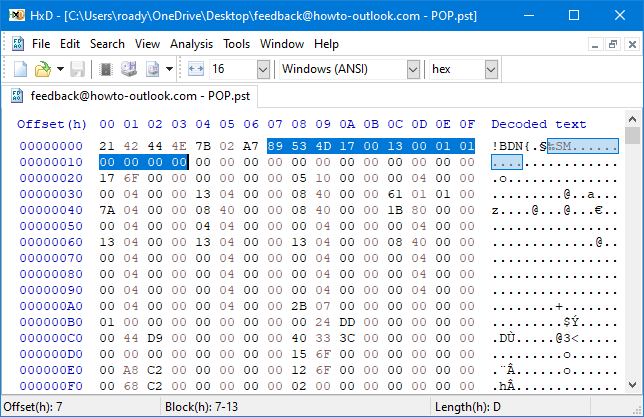
Before editing position 7 through 13 of the pst-file in HxD.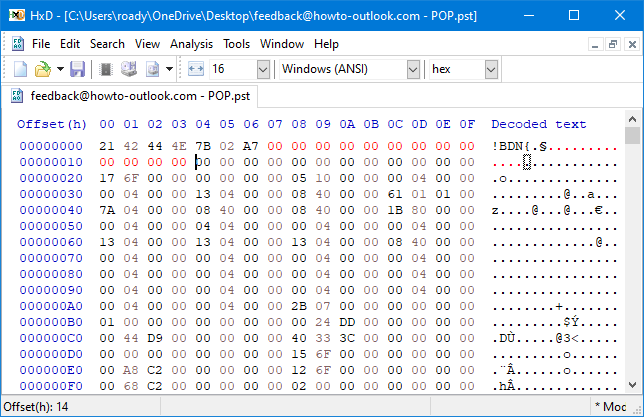
After editing position 7 through 13 of the pst-file in HxD.- Save the *.pst file and close the Hex Editor.
- As you have now corrupted your pst file, you’ll need to run scanpst.exe to repair it.
- When scanpst.exe has repaired your pst file, open it in Outlook and look in the Deleted Items folder, the original folder or the Lost and Found folder (created automatically when needed) to locate your recovered items.